Windows application
Install the RVTools MSI on a Windows workstation used for VMware administration.
 PROVA.WS INVENTORY INTELLIGENCE
RVTools is a Windows utility for VMware administrators. Connect to vCenter Server or an ESXi host, inspect detailed inventory across your virtual environment, and export workbook views for analysis and documentation.
Install the RVTools MSI on a Windows workstation used for VMware administration.
Connect to a vCenter Server or a directly managed ESXi host with authorized credentials.
Collect a point-in-time inventory and review the resulting worksheets in Excel.
RVTools is a Windows-based inventory and reporting utility for VMware vSphere environments. It connects to vCenter Server or an ESXi host, retrieves configuration and inventory details, and organizes the results into workbook tabs for offline review. Administrators commonly use those reports for documentation, environment reviews, capacity discussions, migrations, and audit preparation.
It is a reporting aid, not a real-time monitoring platform or a configuration-management system. Treat each export as a point-in-time snapshot, verify important findings in vSphere, and protect the workbook: host names, VM names, addresses, and configuration details can be sensitive infrastructure data.
Separate workbook views group details from the connected vSphere inventory.
vInfoVirtual machine inventory, identity, power state, guest details, and host association.
vCPU · vMemoryConfigured CPU and memory information for VM resource reviews.
vDisk · vPartitionVirtual disk capacity and guest partition details.
vNetwork · vNICVirtual adapters, connected port groups, and network configuration.
vHost · vClusterESXi host, cluster, and resource-pool relationships.
vDatastoreDatastore inventory and storage-related context.
vSnapshotSnapshot presence and details for follow-up and recovery planning.
vTools · vHealthVMware Tools status and reported health/configuration flags.
Installer steps and RVTools worksheet examples. Open an image for a larger view.
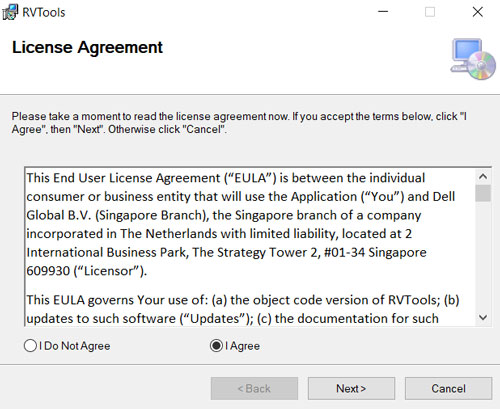
The first installer screen presents the RVTools license. Review the terms, choose I Agree to continue, or cancel if you do not accept them.
RVTools uses the VMware vSphere Management SDK to communicate with vCenter Server or ESXi. VMware Tools is not required to run RVTools, but it can improve the guest operating-system information reported by vCenter.
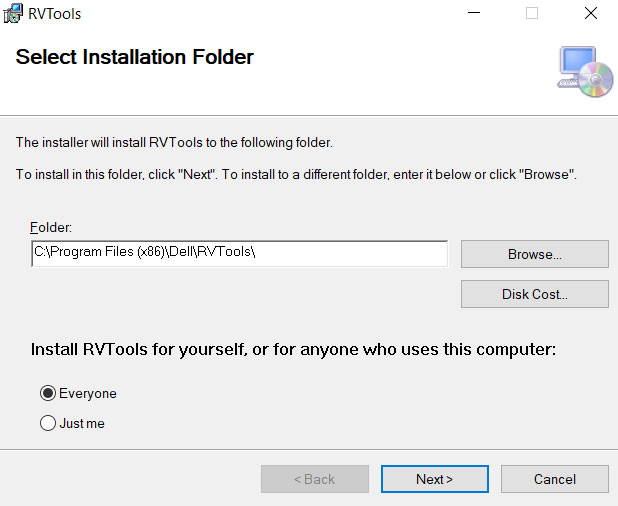
This example proposes C:\Program Files (x86)\Dell\RVTools\ and lets you browse to another location. It also offers an all-users or current-user installation choice.
Check the destination and installation scope before continuing. The path and available options can vary with the installer build and Windows permissions.
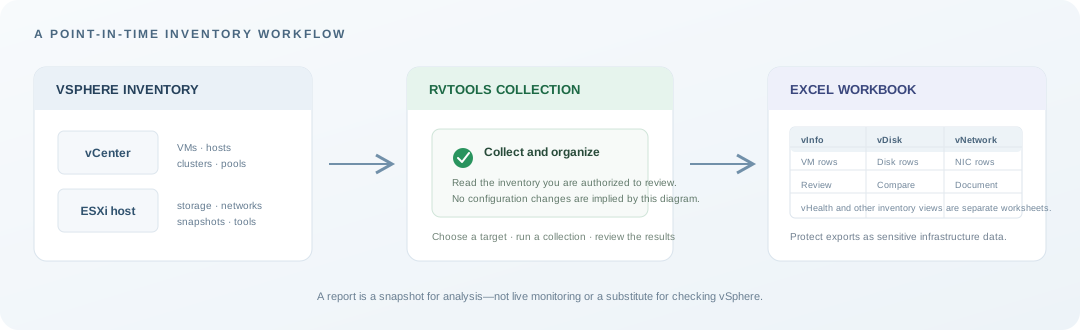
RVTools collects inventory from an authorized vCenter Server or ESXi target and arranges the results into separate workbook views.
Each export represents a point in time. Use it for analysis and documentation, then verify important findings in vSphere; it is not live monitoring.
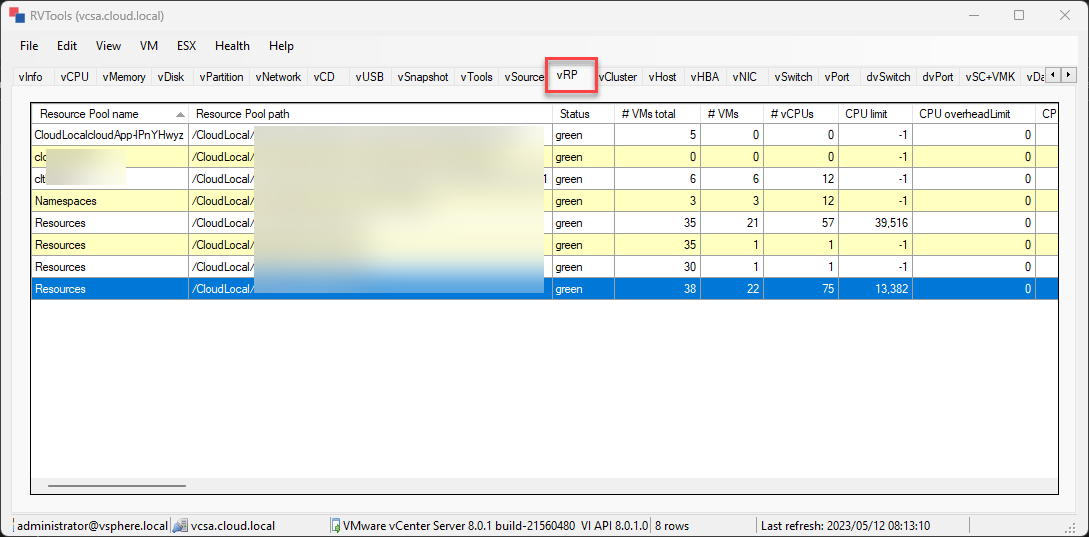
The vRP view connects resource-pool names and paths with status, VM totals, vCPU counts, and CPU limit fields.
Use these columns to understand where workloads sit in a pool hierarchy and to review configured limits. A displayed limit is configuration data, not a utilization measurement.
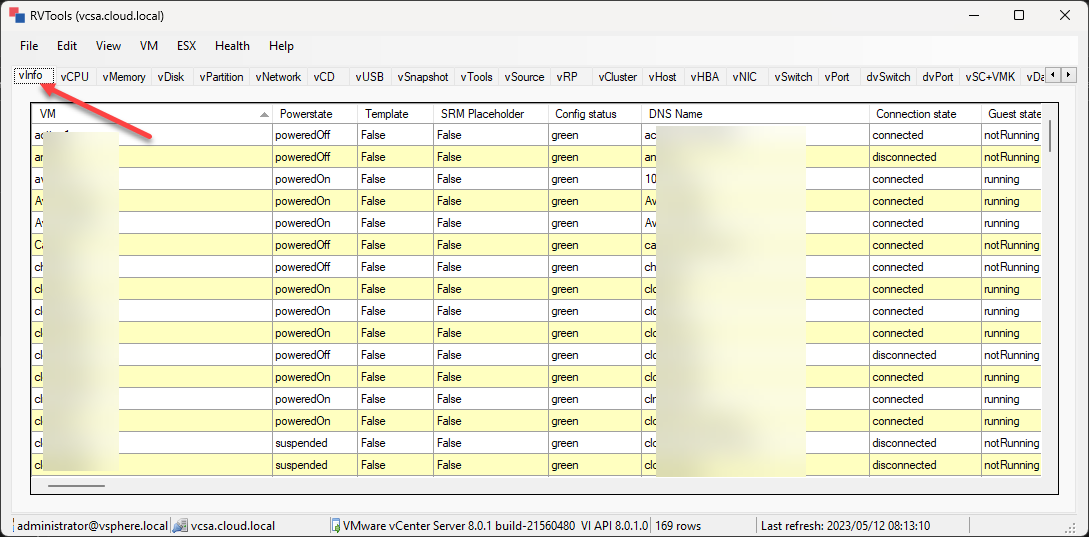
vInfo places VM identity and operating context in a row-based inventory, including power state, template status, configuration, DNS, and guest-state fields.
The example highlights a VMware Tools review. Filter the export to find records needing attention, then confirm the current state in vSphere before acting.
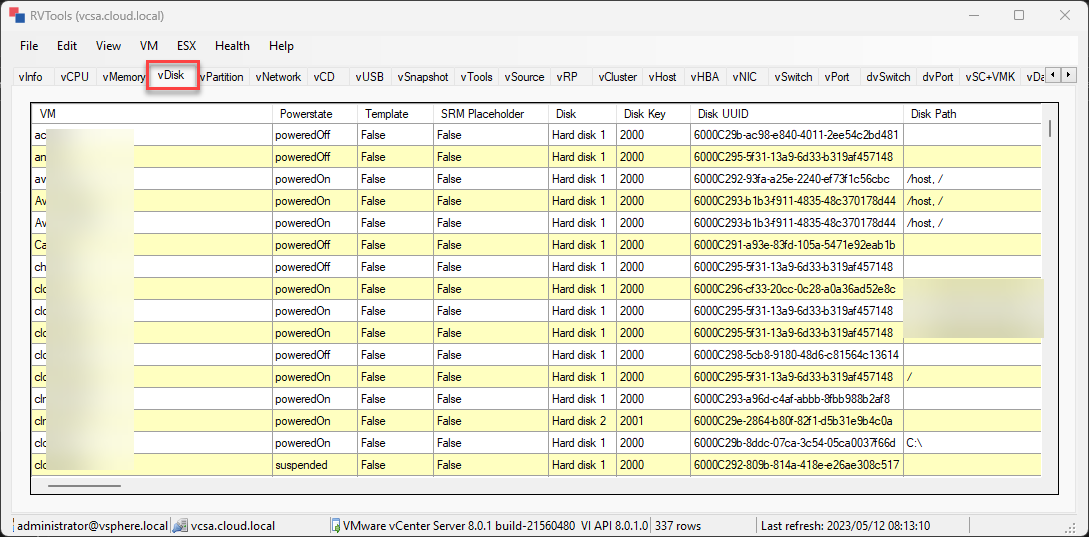
The vDisk view lists disks against their VMs and exposes identifying fields such as disk label, key, UUID, and path alongside disk configuration.
Use the worksheet to compare disk inventory and investigate capacity or path questions. Do not infer that a disk is safe to remove from an export alone.
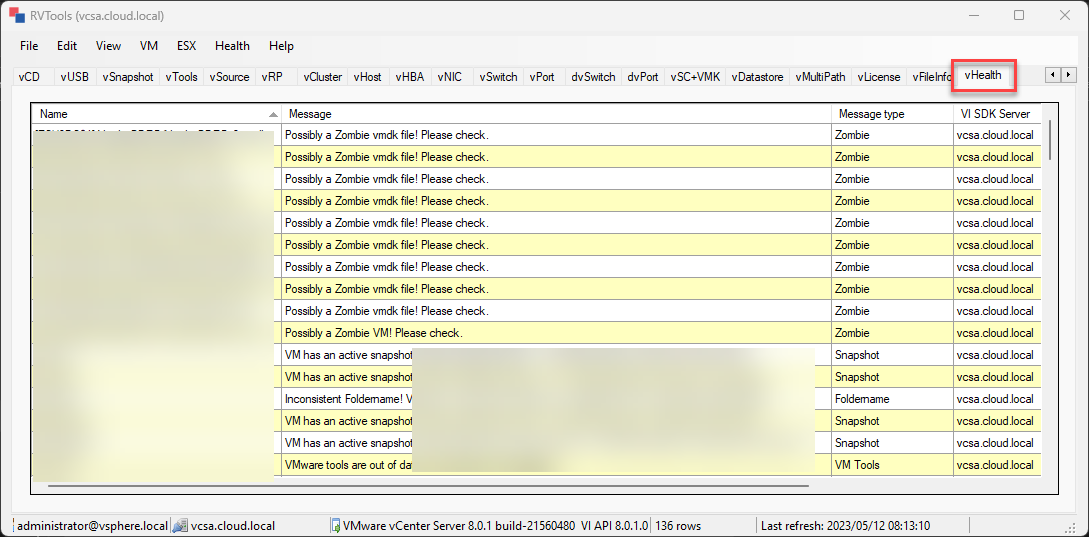
The vHealth worksheet groups inventory flags, including examples related to possible zombie VMs, snapshots, and VMware Tools.
Treat each row as a prompt for an administrator to validate—not as an automatic diagnosis or a recommendation to change a VM.
Installer images show example prompts; paths and options can vary. Worksheet screenshots show example inventory only. Verify findings in your own vSphere environment.
The MSI setup screens are shown in the screenshot reference.
Download the RVTools 4.8.2 MSI and save it to a known location.
Review and accept the license if appropriate, choose the destination and install scope, then finish the Windows Installer steps.
Connect to vCenter Server or an ESXi host using an account authorized for the inventory required.
Inspect VM, host, storage, network, snapshot, and health-related views; export and document findings.
VMware Tools note: RVTools communicates with vSphere through the VMware vSphere Management SDK. VMware Tools is not required for RVTools itself to run, but its status can affect the accuracy of guest operating-system information returned by vCenter.
Prepare access: identify the vCenter or ESXi endpoint, use an account authorized for the inventory you need, and confirm network reachability. Follow your organization's credential and change-control policies.
Collect deliberately: choose the appropriate vSphere target, run the inventory collection, and review the resulting tabs. Large environments may produce substantial workbooks; filter and save only the information needed for the task.
Review and share carefully: investigate stale VMware Tools, snapshots, storage allocation, host relationships, and other findings in context. RVTools reports observations; it does not establish that a configuration is safe or make changes for you. Treat exported workbooks as sensitive operational data.
RVTools is an inventory and reporting utility—not a live monitoring, backup-validation, vulnerability-scanning, or change-control system. Validate operational decisions in your normal VMware tools and procedures.
RVTools is used to collect and report inventory. Review the selected version's documentation and your access policy; do not treat an exported report as a change or remediation tool.
No. A workbook records information collected at a point in time. Use your monitoring and alerting systems for ongoing performance and availability.
RVTools itself is installed on Windows. VMware Tools status and guest details may be reported where available from the environment; missing guest tools can limit some guest information.